A Wix website maintenance checklist is a set of regular tasks you perform to keep your Wix site running at its best. It includes everything from checking broken links and updating content to testing contact forms and reviewing your SEO settings.
If you want your site to keep attracting visitors and generating leads, consistent maintenance is not optional. It is one of the most important habits you can build as a Wix site owner.
Launching your website is just the beginning. A lot of Wix owners fall into the trap of thinking the work is done once their site goes live. The truth is, websites need ongoing care just like any other business asset.
Content gets outdated, apps stop working, page speed can go down, and Google keeps updating how it ranks sites. Without a solid Wix website maintenance plan, you can quietly lose traffic, leads, and trust without even realizing it.
The good news? You do not need to be a developer or spend hours each week on this. A simple, organized Wix maintenance checklist gives you a clear process to follow and makes the whole thing manageable.
Wix Built-in Features
Before diving into your checklist, it helps to know what Wix already takes care of on its own. This way, you can focus your energy on the tasks that actually require your attention.
Use this list to understand what Wix already manages, so you can focus on the tasks that actually need your input.
- Wix provides and manages cloud hosting for your site with industry-leading uptime, so you do not need to maintain servers or hosting.
- Wix automatically manages infrastructure reliability, including multi-cloud hosting, global data centers, and traffic routing to avoid downtime.
- SSL certificates are enabled for Wix sites and renew automatically, so your site stays secure over HTTPS without manual setup.
- Wix pushes continuous platform and editor updates in the background, so you always use the latest version without updating software yourself.
- Your site content is delivered via a global content delivery network (CDN) to improve load times for visitors in different locations.
What Wix does not handle for you (and should be on your manual maintenance checklist):
- Your site content, including pages, blogs, pricing, and service details.
- Third-party apps and integrations installed via the Wix App Market.
- SEO settings such as titles, meta descriptions, structured data, and keyword targeting.
- Form and booking functionality, including testing submissions and notifications.
- Page-level performance, including image optimization, app usage, and layout choices.
Why Does Regular Wix Website Maintenance Matter?
Think of your website like a physical storefront. If the signs are outdated, the lights are dim, and the front door is stuck, potential customers move on. The same thing happens online when your Wix site is neglected.
Regular Wix website maintenance helps you improve your search engine rankings over time
- Generate more leads and conversions
- Create a better user experience for every visitor
- Keep your business information accurate and current
- Catch technical problems before your customers notice them
- Make your brand look professional and trustworthy
One real-world example worth noting: 34% of Wix site owners report discovering a broken form, button, or booking integration failure only after a customer pointed it out. A simple monthly test could have caught every one of those issues first.
Wix Website Maintenance Checklist
The most practical way to manage your Wix site maintenance is to break it down by how often each task needs to happen. Here is a complete, frequency-based Wix website maintenance checklist you can start using today.
Weekly Wix Maintenance Tasks
These quick checks take 20 to 30 minutes and help you catch urgent issues before they grow into bigger problems.
1. Review Form Submissions and Leads

Log into your Wix dashboard and check all active contact forms, booking requests, and quote forms. Confirm that email notifications are arriving in your inbox and that no submissions have been missed. A broken contact form can cost you valuable leads, and the only way to know it is working is to check it regularly.
2. Monitor Your Website Traffic
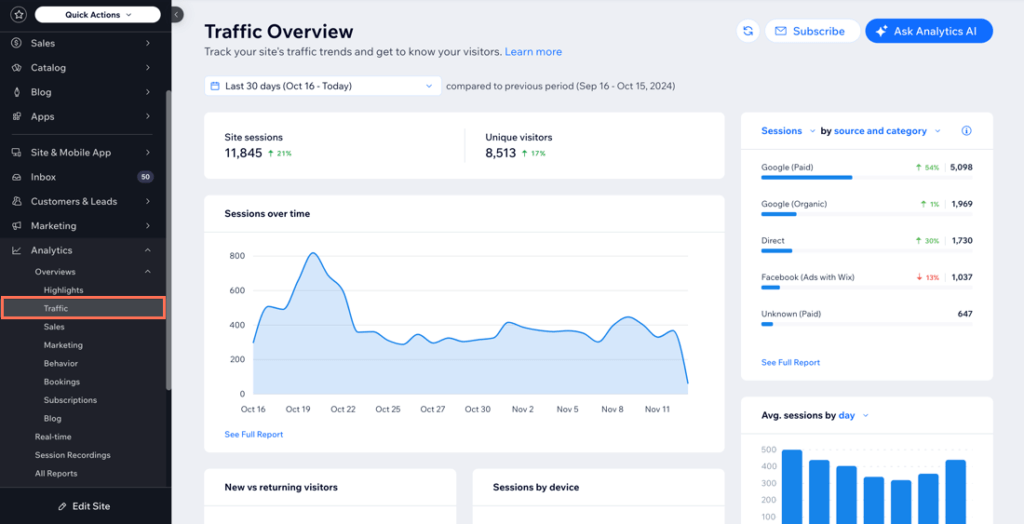
Take a quick look at Wix Analytics, Google Analytics, and Google Search Console. You do not need to analyze every data point. Just watch for sudden drops in traffic, unusual spikes in bounce rates, or any major changes in visitor behavior. Catching these early lets you act before they become serious SEO problems.
3. Check Menu/Navigation Links
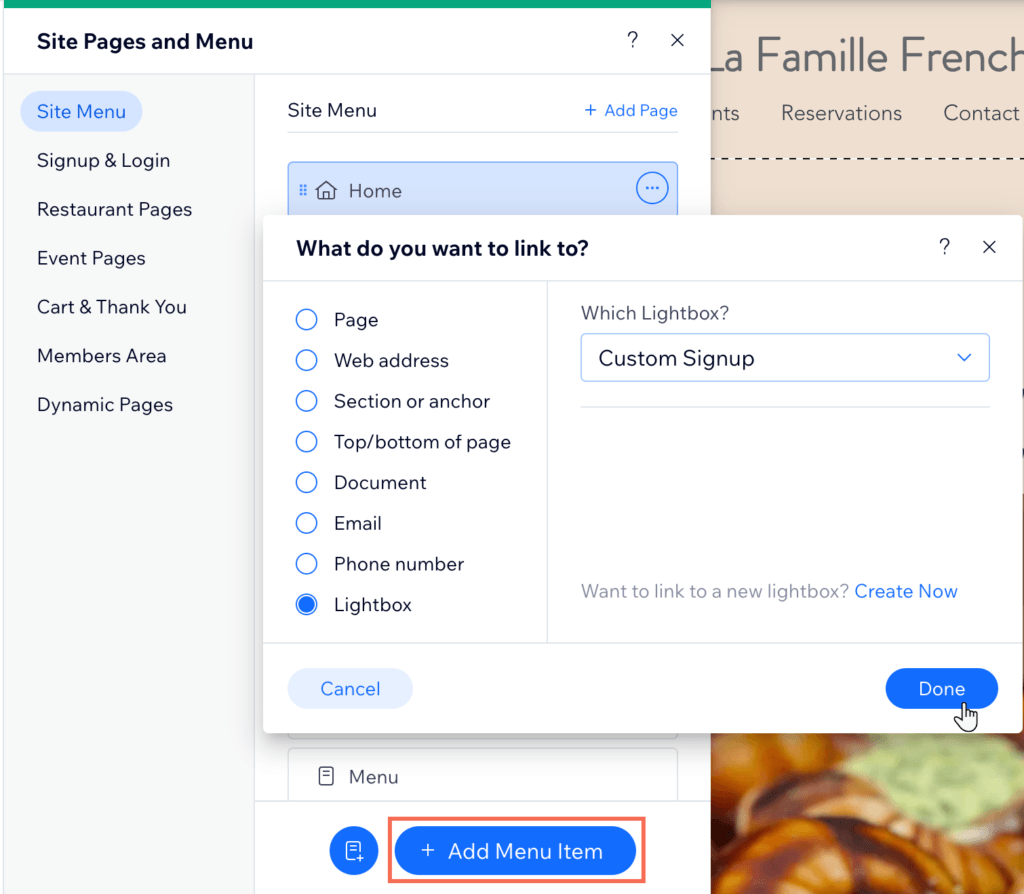
Test your navigation menu links, call-to-action buttons, contact links, and any external links on key pages. Broken links hurt user experience and send negative signals to search engines. Many site owners only discover broken links months after they stop working.
Monthly Wix Maintenance Tasks
Monthly tasks are the heart of your Wix website maintenance plan. Budget roughly 2 to 3 hours per month to complete these properly.
4. Test All Forms and Booking Flows
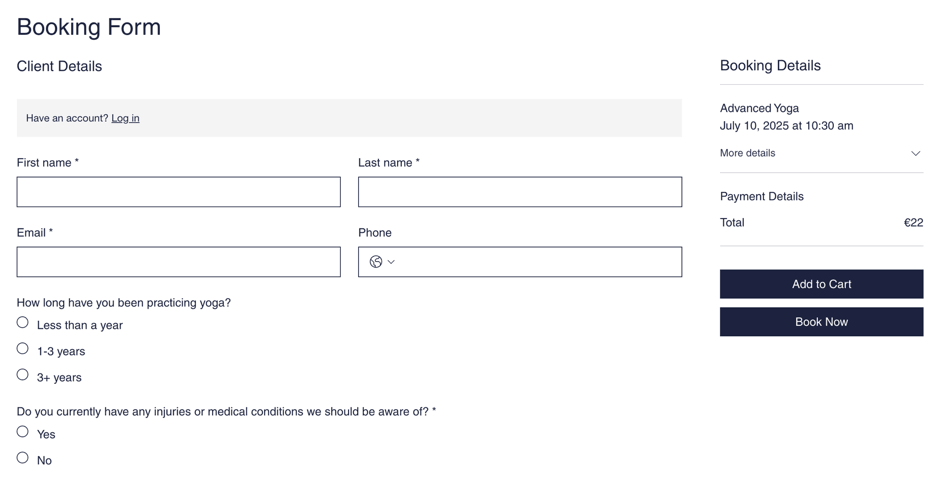
Submit a test entry through every active form on your site, including contact forms, lead capture forms, and booking widgets. Test on both desktop and mobile. Wix forms sometimes display incorrectly on mobile viewports after platform updates, and your booking widget can quietly stop sending confirmation emails after a backend app update.
This is your highest-stakes maintenance task. A broken checkout or booking flow costs you real revenue with every failed attempt.
5. Review and Update Website Content
Fresh content tells search engines your site is active and tells visitors you are a current, reliable business. Go through your key pages and update:
- Service or product descriptions
- Pricing information
- Testimonials and case studies
- Team bios and contact details
- Frequently asked questions
Even small updates to existing pages can improve your site’s visibility in search results over time.
6. Conduct a PageSpeed Check
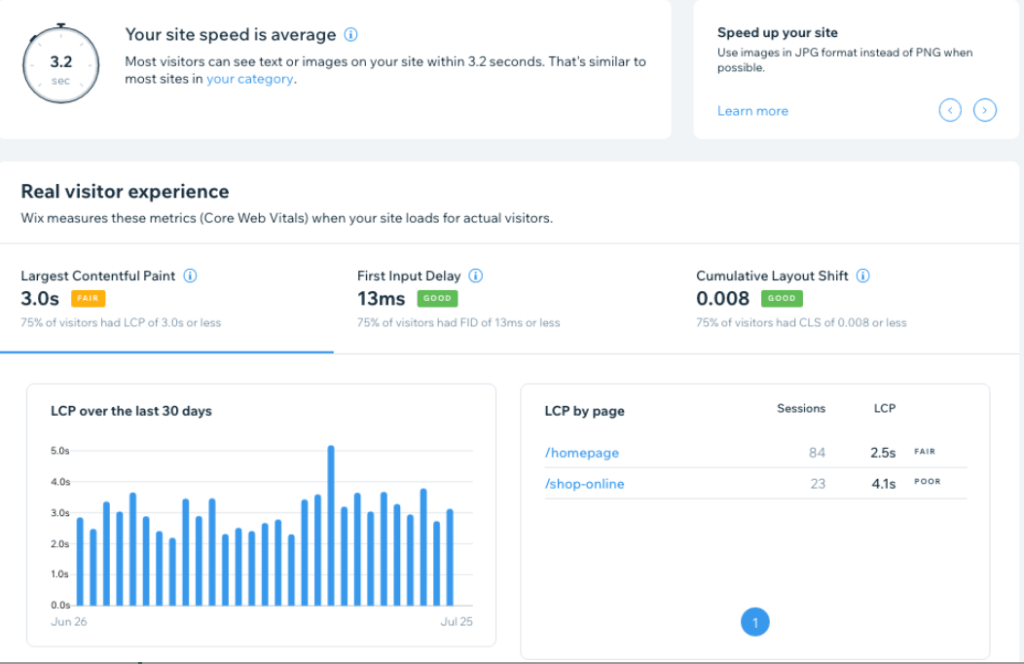
Run your site through Google PageSpeed Insights and check your Core Web Vitals scores. Wix sites can slow down from unoptimized images, heavy video embeds, and third-party app scripts. Google’s Core Web Vitals directly affect your rankings regardless of the platform you use. Monthly checks let you catch performance drops before they affect your positions.
7. Check Mobile Version of Your Site
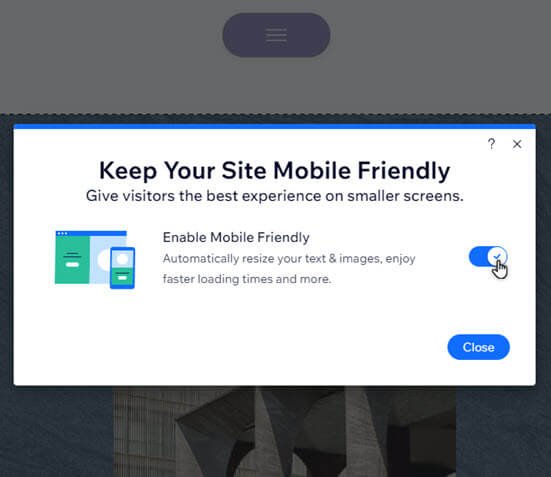
More than half of website traffic comes from mobile devices. Open your site on a smartphone and a tablet and look for:
- Overlapping text or buttons
- Images that are cut off or too large
- Slow-loading sections
- Buttons that are hard to tap
- Readability issues on smaller screens
A common mistake is making a design change in the desktop editor and publishing without checking the mobile preview first. Always check your mobile before publishing any design update.
8. Review App Integrations
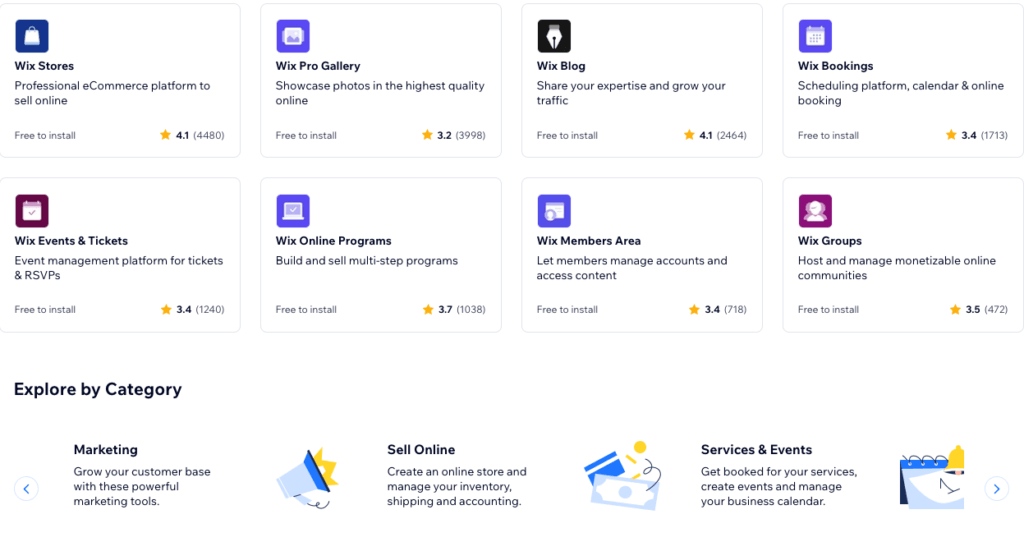
Most Wix business sites use 5 to 15 apps for booking, email marketing, live chat, CRM, and payments. Each one connects via APIs that can break independently when the app provider makes updates. Go through your installed apps each month and verify they are functioning as expected. Remove any apps you are no longer using, since unnecessary apps slow down your site.
9. Review SEO Performance
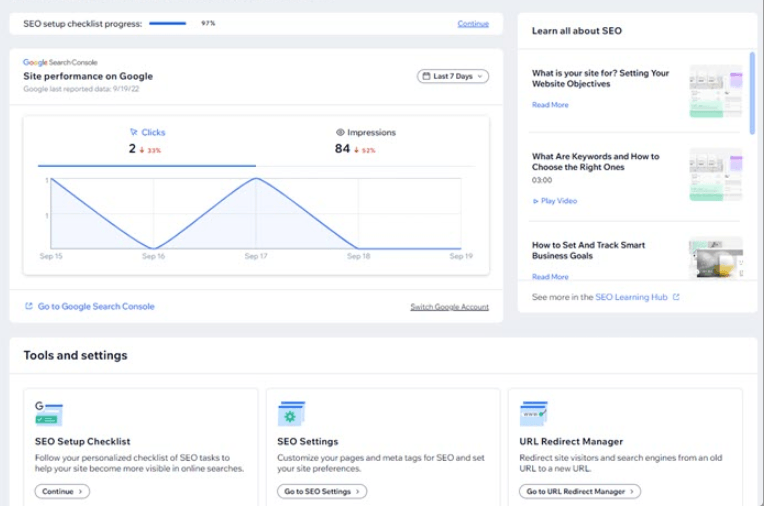
SEO is not a one-time setup. Each month, check your top-performing pages, current keyword rankings, and pages that have seen a drop in traffic. Look for opportunities to improve existing content before adding new pages. Wix’s built-in SEO Wiz tool also gives you a checklist of platform-specific issues, and it is worth revisiting regularly as you add new pages.
10. Publish Fresh Content
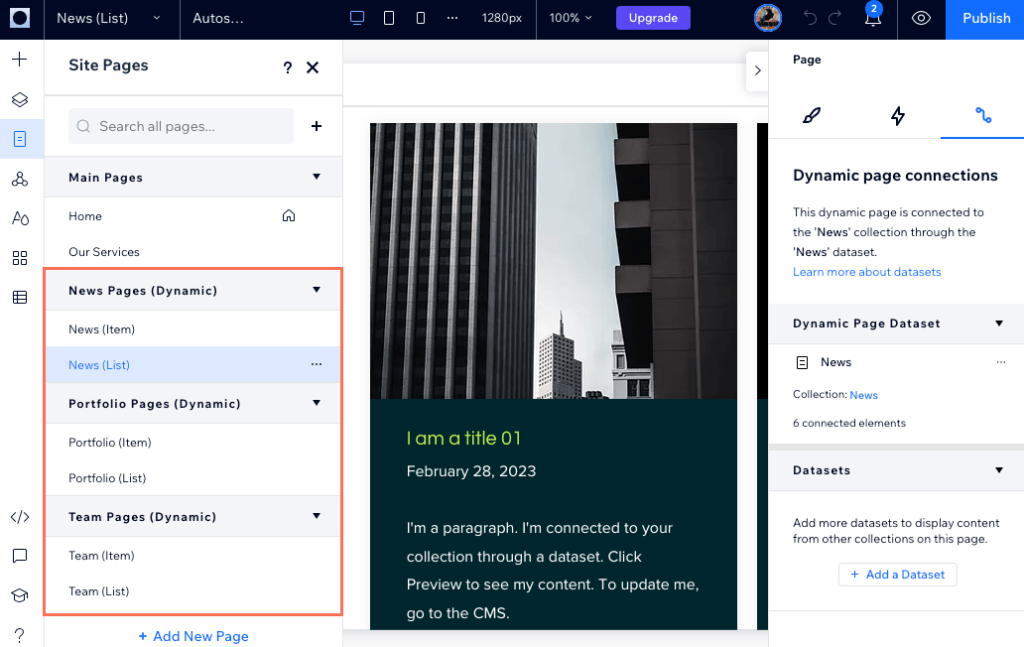
Publishing consistent content through the Wix Blog is one of the best long-term habits for improving your site’s authority. Aim to publish at least one new blog post, case study, or FAQ piece each month. A blog that has not been updated in 12 to 18 months can actually hurt credibility, so if you cannot maintain it consistently, either build a posting schedule or remove the blog from your main navigation.+1
Quarterly Wix Maintenance Tasks
These deeper tasks keep your Wix site competitive and aligned with your current business goals.
11. Scan for Broken Links
Use a link checking tool to run a full scan of all internal and external links across your site. This is more thorough than the weekly spot-check and will catch broken links on older pages you may not visit often. Broken links hurt both SEO and user experience.
12. Review SEO Titles, Meta Descriptions, and Alt Text
Go into each page’s SEO settings and review the title tag, meta description, and image alt text. Title tags should be 55 to 65 characters and include your primary keyword. Meta descriptions should be 155 to 165 characters and give users a clear reason to click. Update any pages where this information is missing, outdated, or not optimized.+1
13. Refresh Homepage Messaging and Visuals
Outdated imagery makes a business look inactive. Every quarter, review your homepage copy and key images. Update team photos, portfolio examples, client testimonials, and any seasonal visuals. Fresh visuals build trust and help maintain a professional appearance.
14. Audit Site Speed and Performance Settings
Go beyond the basic monthly PageSpeed check and dig into your performance settings. Inside the Wix dashboard, enable manual caching for static pages like your homepage, about page, and service pages. Turn off page transitions in Site Design, as these add unnecessary load time without improving user experience. Remove heavy animations, especially above the fold, and stick to two fonts maximum, one for headings and one for body text.
15. Check Conversion and Marketing Flows
Review your entire lead generation setup: lead magnets, email automations, booking systems, thank-you pages, and sales pages. Ask yourself if the site is actually generating leads and whether visitors are converting. Small improvements throughout the funnel can significantly improve your results over time.+1
Annual Wix Website Maintenance Tasks
Once a year, take a step back and look at the big picture.
16. Conduct a Full Website Audit
Review your entire site from a fresh perspective. Evaluate branding consistency, service accuracy, user experience across all pages, and overall SEO opportunities. Businesses evolve quickly, and your website needs to reflect where your business is today, not where it was two or three years ago.+1
- Update Legal Pages
Review and update your privacy policy, terms and conditions, cookie policy, and any accessibility statements. Laws and compliance standards change, and keeping these pages current protects your business and builds user trust.
18. Reassess Your SEO Strategy
Keyword trends shift over time. A keyword that drove traffic two years ago may no longer be the right target today. Review your primary keywords, check what your competitors are ranking for, and identify new opportunities based on your current services and target audience. This yearly reset ensures your Wix website maintenance plan stays aligned with your business goals.
19. Renew Your Wix Premium Plan
This one is easy to forget but critical. Wix premium plans, including your custom domain connection, require annual renewal. A lapsed plan can take your site offline completely. Set a calendar reminder 60 days before renewal to avoid any interruptions.
Wix Website Speed Optimization: What to Check
Site speed is one of the most impactful maintenance areas for both user experience and SEO. Here are the key speed-related tasks to include in your regular Wix website audit checklist:
- Compress images before uploading. Use tools like TinyPNG to reduce file sizes before adding images to Wix. Even though Wix auto-optimizes, pre-compressing gives you better control and results. Use JPEG for photos, WebP where possible, and SVG for logos.
- Turn off page transitions. Go to Site Design in the editor, click Page Transitions, and select None. This removes unnecessary animations that add loading time.
- Limit animations. Stick to one animation per section and avoid JavaScript-heavy scroll effects, especially above the fold.
- Keep fonts minimal. Use one font for headings and one for body text. Avoid uploading custom font files or using text in images.
- Enable manual caching for static pages. In page settings under Advanced, toggle on manual caching for pages that do not change often. This allows Wix to serve a stored version faster.
- Remove unused apps. Each app installed on your site runs additional scripts that slow page loading. Only keep apps you actively use.
- Use one background image site-wide. Keep background images in JPEG format and sized appropriately for your layout.
Pages should ideally load in under three seconds. On desktop, well-optimized Wix Studio sites typically load in 1.8 to 3.2 seconds, and on mobile between 2.5 and 4.5 seconds.
How to Back Up Your Wix Site
Before making any major changes to your site, always create a backup first. Wix stores your site’s version history automatically, and you can access it through Site History in your dashboard.
To create a manual backup:
- Open your Wix dashboard and go to Site Actions
- Select Site History
- Click Create Backup and give it a clear, descriptive name with the date
- Click Save
To restore a previous version, return to Site History, browse the saved versions, preview the one you want, and click Restore. Keep in mind that restoring a version replaces your entire current site with the selected version, so double-check before confirming.
For extra protection, you can also duplicate your site from the Wix dashboard using more actions and selecting duplicate site. This gives you a full offline copy before any major redesign or update.
Common Mistakes to Avoid While Maintaining a Wix Website
Knowing what not to do is just as valuable as knowing what to do. These are the most common mistakes Wix site owners make:
- Not testing booking flows after app updates. Wix App Market apps update on their own schedule. An update to your scheduling or payment app can change how confirmations are sent without notifying you. Always test after updates.
- Publishing without checking on mobile. Design changes that look perfect at 1280px on desktop can break layouts at 390px on mobile. Always preview mobile before hitting publish.
- Ignoring the Wix SEO Wiz. Most owners complete it during setup and never return. Revisit it quarterly since new pages create new gaps.
- Leaving an inactive blog live. A blog with its last post from 18 months ago signals to visitors that your business may not be active. Either publish consistently or remove the blog from your navigation.
- Letting Wix premium plans lapse. Set renewal reminders at least 60 days in advance to avoid unexpected downtime.
When Your Wix Site Needs Maintenance!
If any of the following sound familiar, your site is overdue for a proper Wix website health checkup:
- You have not updated your site in six months or more
- Lead volume has dropped without an obvious reason
- Your contact information, services, or pricing has changed, but the site still shows old info
- Your site loads noticeably slowly on mobile
- Visitors are landing on your site but not converting
- You have not published any new content recently
- You are not sure if your contact form is actually delivering submissions



![How Much Does an SEO Expert Cost in 2026 [SEO Pricing]](https://seovisibility.co/wp-content/uploads/2026/01/how-much-does-an-seo-expert-cost.png)