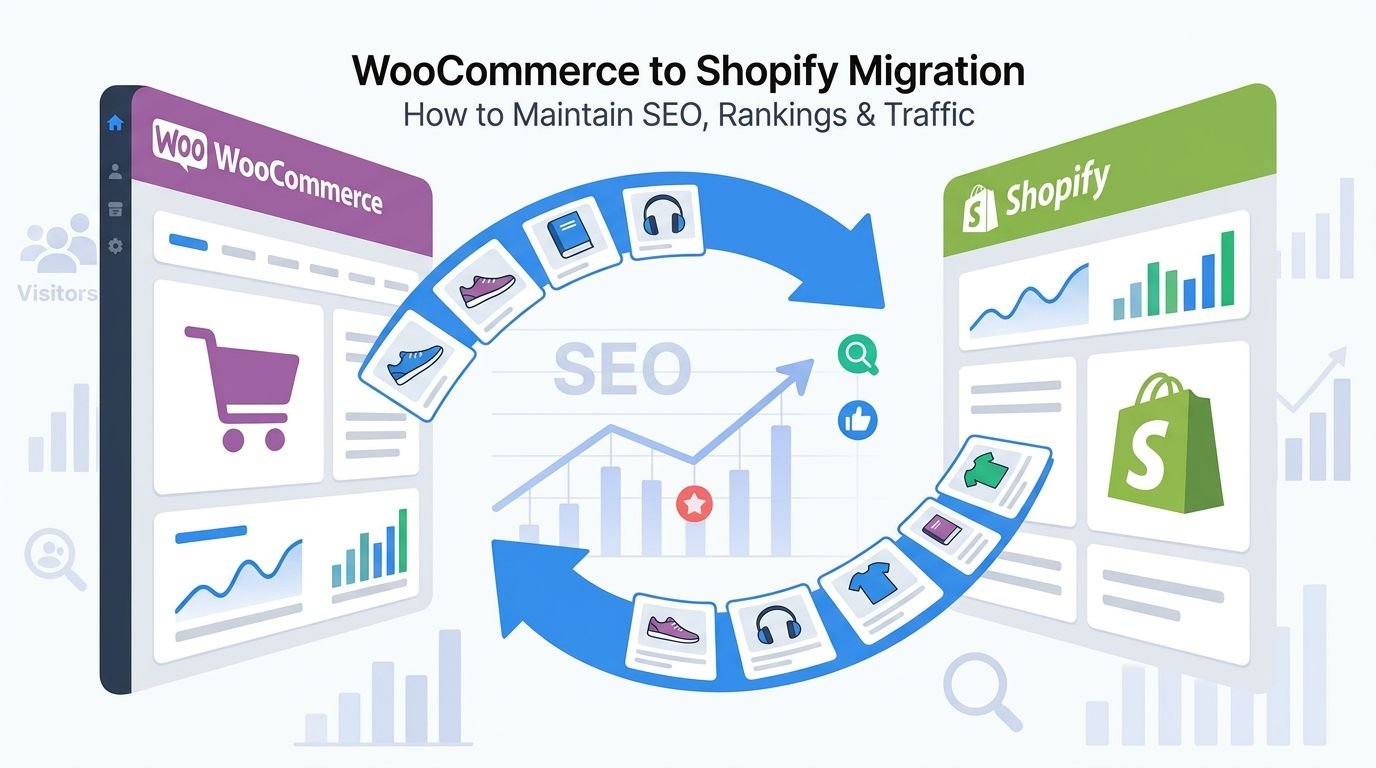

So you have decided to move your WooCommerce store to Shopify. Good decision. Now comes the part that transitions most store owners up: doing it without losing the Google rankings and organic traffic you have already built.
You already know why you are switching. Maybe WooCommerce has become a full-time job — plugins conflicting, hosting acting up, checkout breaking during peak sales. Maybe you just want a platform that handles the technical side so you can focus on running your business. Whatever the reason, the decision is made. The real question now is: how do you make the move without watching your search traffic disappear?
Here is the direct answer: a WordPress to Shopify SEO migration does not have to cost you a single ranking — as long as you follow the right steps in the right order. The stores that lose rankings after migration are not losing them because they moved to Shopify.
They lose rankings because they skipped redirects, left metadata behind, or did not know about a specific Shopify technical issue that silently creates duplicate content across their entire product catalog.
This is a comprehensive guide to WordPress to Shopify migration built specifically for WooCommerce store owners who are ready to move and need a practical, step-by-step process to protect their SEO. Every step in this guide is focused on one thing: keeping your rankings intact while you make the switch.
5 Reasons to Migrate from WooCommerce to Shopify
Most store owners who migrate have not had a single catastrophic failure. The frustration builds slowly: another plugin update that breaks checkout, another hosting bill that crept up, another afternoon lost to debugging instead of selling.
Here are the real reasons store owners are making the switch.
Maintenance. Running a WooCommerce store means managing WordPress core updates, WooCommerce updates, theme updates, and a stack of plugins — all of which can conflict with each other. A single plugin update can take down your checkout without warning. On Shopify, the platform handles all of this for you.
Hosting: WooCommerce is technically free, but hosting a store that can handle real traffic — with proper server configurations, CDN, backups, and SSL — adds up fast. Most mid-size WooCommerce stores are spending more on infrastructure than they realize once you count hosting, security plugins, caching tools, and developer time.
Checkout: Checkout is limited and hard to optimize. WooCommerce’s checkout process requires plugins, customization, and ongoing maintenance to get right. Shopify’s checkout is built for conversion out of the box. It supports one-click checkout, Shop Pay, Apple Pay, and Google Pay natively — with no extra setup.
Scaling: A traffic spike or a viral product moment can bring a WooCommerce store to its knees if the hosting is not properly configured. Shopify’s infrastructure scales automatically. Your store handles a flash sale or a PR mention the same as a slow Tuesday.
Security: WordPress is the most targeted CMS on the internet. Keeping a WooCommerce store secure requires active monitoring, regular plugin audits, and frequent updates. Shopify is PCI DSS compliant and handles security at the platform level.
What Actually Causes Ranking Loss During Migration
Most people assume platform migrations are risky because Google may penalize you for switching. That is not how it works. Google does not care what software you are running. What Google cares about is whether your pages are still accessible, whether your content is still relevant, and whether your URLs still work correctly.
Here is what actually causes ranking loss after a WordPress to Shopify migration:
URL changes without proper redirects. This is the biggest one. When your URL structure changes — and it will change significantly when moving from WooCommerce to Shopify — every old URL that does not have a 301 redirect becomes a dead end.
Google drops those pages from its index. Backlinks pointing to those old URLs stop passing authority. Your rankings disappear.
Duplicate URLs left unresolved. Shopify automatically creates two paths to every product. One under /products/product-name and another under /collections/collection-name/products/product-name.
If your canonical tags are not set up correctly, Google sees this as duplicate content and may split ranking signals across both URLs — or ignore one entirely.
Losing metadata. If meta titles, meta descriptions, and image alt text do not come across during migration, every page starts fresh with no SEO signals. Your organic click-through rates collapse.
Missing structured data. Product schema, breadcrumb schema, review schema — these power rich snippets in search results. If they do not get rebuilt in Shopify, you lose those enhanced result appearances and the traffic that comes with them.
These are preventable problems. All of them. That is what this guide is for.
WordPress Vs Shopify: Key SEO Differences
Before you touch a single setting, understand the fundamental SEO differences between these two platforms. What you knew about SEO in WordPress does not all transfer directly.
| Feature | WordPress / WooCommerce | Shopify |
|---|---|---|
| URL Structure | Fully customizable (any permalink you want) | Fixed: /products/, /collections/, /pages/ |
| Category URL | Supports deep nested URLs (e.g. /clothing/shirts/blue-shirt/) | Flat only — no sub-category |
| Duplicate URLs | Not a default issue | Auto-generates /collections/X/products/Y alongside /products/Y |
| Canonical Tags | Plugin-controlled (Yoast, RankMath) | Theme-controlled — must verify manually |
| Sitemap Control | Full control via plugin | Auto-generated — cannot exclude individual pages |
| SEO Plugins | Yoast SEO, RankMath, AIOSEO | Smart SEO, SEO Manager, Plug In SEO |
| Schema / Structured Data | Plugin-based or custom | Must be added via theme or app |
| Robots.txt | Fully editable | Limited editing (Shopify controls core directives) |
| Blog SEO | Native WordPress post types | Built-in blog — less flexible than WordPress |
| Page Speed | Depends heavily on hosting + plugins | Generally faster — Shopify handles infrastructure |
The biggest shift to internalize: virtually every URL in your store will change. WordPress gives you complete control over URL structure. Shopify does not.
Your WooCommerce product at /product/blue-sneakers/ becomes /products/blue-sneakers.
Your category /product-category/shoes/ becomes /collections/shoes/ Every single one of those URL changes needs a 301 redirect — no exceptions.
The biggest shift to internalize: virtually every URL in your store will change. WordPress gives you complete control over URL structure. Shopify does not.
Your WooCommerce product at /product/blue-sneakers/ becomes /products/blue-sneakers.
Your category /product-category/shoes/ becomes /collections/shoes.
Every single one of those URL changes needs a 301 redirect — no exceptions.
Pre-Migration SEO Audit Checklist (Before You Migrate
Do not move a single file until you have completed a full pre-migration audit checklist. This baseline data is what you will use to verify that nothing broke after the migration goes live.
What to export and document:
- Full URL list of every page, product, category, blog post, and tag page — export from Screaming Frog
- Organic traffic data per URL from Google Analytics (last 12 months)
- Keyword rankings per URL from Google Search Console or Ahrefs/Semrush
- All meta titles and meta descriptions — export from your current SEO plugin
- All image alt text
- All inbound backlinks from Ahrefs or Semrush — pay special attention to high-authority links pointing to specific product or category URLs
- Your current sitemap.xml and robots.txt
- All existing 301 redirects are already in place on your WordPress site
- Any custom schema markup already implemented
- Page speed scores from PageSpeed Insights
Why this matters: If your rankings drop after migration, this data tells you exactly which pages dropped, which URLs are returning 404 errors, and where you need to focus your fix-it efforts. Without it, you are flying blind.
Save everything in a spreadsheet. You will refer to this document throughout the entire migration process.
Step-by-Step: How to Properly Migrate WooCommerce to Shopify
This section is the core of any successful WordPress to Shopify SEO migration. Follow these steps in order. Skipping ahead or doing steps out of sequence is where most migrations go wrong.
Step 1: Set Up Your Shopify Store the Right Way
Before you import anything, get your Shopify store configured properly.
Choose your plan. Shopify offers three main options: Basic at $39/month, Shopify at $105/month, and Advanced at $399/month. For most migrating stores, the Shopify plan ($105/month) is the right starting point — it gives you professional reports and better shipping rates. If you are running a high-volume store, Advanced may pay for itself in reduced transaction fees.
Pick a theme built for performance. Not every Shopify theme is created equal from an SEO standpoint. Look for a theme with clean HTML structure, fast load times, and proper heading hierarchy. The Dawn theme (Shopify’s default) is a solid, fast baseline. If you are buying a premium theme, check its PageSpeed score before you commit.
Install your SEO apps before you import content. Smart SEO or SEO Manager are the most capable options for controlling meta titles, descriptions, and schema. Plug In SEO is useful for ongoing auditing. Set these up first so metadata fields are available when you start importing products and pages.
Connect Google Search Console and Google Analytics 4 to your new Shopify store before go-live. You want tracking to be active from the moment the first visitor lands.
Step 2: Export Everything from WordPress
Pull a complete data export from your WordPress site while it is still live. Do not do this in stages — export everything at once so the dataset is consistent.
What to export:
- All products with descriptions, prices, variants, images (with original filenames), and categories
- All WooCommerce customer data
- All blog posts with their metadata, images, and categories
- All static pages (About, Contact, FAQs, etc.)
- Your current sitemap.xml
- Your robots.txt file
- All redirects currently in your .htaccess file or redirect plugin
For images, make sure filenames are SEO-friendly before export (lowercase, hyphenated, descriptive). If your current filenames are things like IMG_20210445.jpg, rename them before migration. You cannot easily rename images in bulk once they are inside Shopify.
Step 3: Import Content to Shopify
Two tools dominate this step: Matrixify (highly recommended) and Cart2Cart.
Matrixify is the more powerful app for complex stores. It handles products, collections, pages, blog posts, customers, metafields, and redirects — all in a single import. It also gives you fine-grained control over field mapping, which is critical for preserving SEO data.
Key field mappings to get right:
- WooCommerce product categories → Shopify Collections
- WooCommerce product tags → Shopify product tags
- WooCommerce custom fields → Shopify metafields
- Product image alt text → Shopify image alt text (do not skip this)
- WooCommerce SKUs → Shopify SKUs (important for inventory tracking)
After import, spot-check 20–30 products manually. Verify that image alt text came through, meta titles are populated, and product descriptions are intact. Fix any broken imports before moving on.
One thing Shopify cannot do: import customer passwords. This is a platform-level limitation — Shopify’s security model does not allow password transfers. After migration, send your customer base a password reset email campaign. Frame it as a security upgrade. Most customers will not mind.
Step 4: Rebuild On-Page SEO from Scratch
Do not trust auto-generated metadata. Ever.
Most migration tools will pull your existing meta titles and descriptions across, which is a good starting point. But treat every imported metadata field as a first draft, not a finished product.
Work through your top-traffic pages first. Use your pre-migration audit data to identify the 50–100 pages driving the most organic traffic. Those pages get manual SEO attention immediately. For the rest of your catalog, prioritize by product importance and revenue potential.
For each page, review and optimize:
- Meta title: Include primary keyword, brand name, keep it under 60 characters
- Meta description: Include a keyword, write a compelling reason to click, keep it under 155 characters
- H1 heading: Should match the page’s primary keyword intent, be unique on every page
- Product description: Include keywords naturally in the first 100 words; do not keyword-stuff
- Image alt text: Descriptive, keyword-relevant, not generic (“product image”)
- Internal links: Add 2–3 relevant internal links from each product page and blog post
Step 5: Set Up 301 Redirects (Very important)
This is very important. This is not something you can come back and fix later. 301 redirects are what keep your rankings alive after a WordPress to Shopify migration.
Every single old URL that changes needs a 301 redirect to its new Shopify equivalent. Everyone.
Common URL pattern changes:
| Old WooCommerce URL | New Shopify URL |
|---|---|
| http://product-category/shoes/ | /collections/shoes |
| http://product-category/clothing/shirts/ | /collections/shirts |
| http://product/blue-sneakers/ | /products/blue-sneakers |
| http://product/red-dress/ | /products/red-dress |
| http://blog/ | /blogs/news |
| http://about-us/ | /pages/about-us |
Set up 301 redirects in three places:
- Shopify Admin URL redirects (Navigation > URL Redirects) — handles individual page redirects
- Matrixify bulk redirect import — the fastest way to handle hundreds or thousands of redirects
- Easy Redirects or 301 Redirect Manager app — useful for ongoing management after go-live
Once redirects are in place, crawl your old site’s URL list through Screaming Frog and verify every URL returns a 301 (not a 302, not a 404). A 302 redirect is temporary — it does not pass link equity. All your redirects must be 301.
Pay extra attention to URLs with high-authority backlinks. Those are your most valuable redirect targets. If a product page has 50 inbound links from authoritative sites, a missing redirect on that URL costs you significant ranking power.
Step 6: Fix Shopify’s Canonical Tag Issue
This is the step that most migration guides miss entirely — and it is one of the most important for preserving rankings on Shopify.
Here is the problem: Shopify automatically creates two different URLs for every product that appears in a collection.
- The canonical product URL: /products/blue-sneakers
- The collection-scoped URL: /collections/sale/products/blue-sneakers
Both URLs show the same product page. If your theme is not set up correctly, Google may encounter the collection-scoped URL (for example, through internal links from a collection page) and try to index it. Even if the canonical tag is technically correct, internal links pointing to the wrong URL dilute your crawl budget and create confusing signals.
How to fix it:
First, verify that your theme’s canonical tag always outputs /products/product-handle and never /collections/X/products/product-handle. In your theme’s Liquid code, look for canonical_url and confirm the logic.
Second, make sure every internal link in your store — from collection pages, blog posts, navigation menus, and anywhere else — links to /products/product-handle and not the collection-scoped version. This is especially important for collection pages where product links often default to the collection-scoped URL.
Third, after go-live, run your Shopify store through Screaming Frog and filter for any pages where the URL and canonical tag do not match. Fix those manually.
This canonical issue will not destroy your rankings overnight, but left unaddressed, it creates compounding SEO noise as your catalog grows. Fix it at launch.
Step 7: Add Internal Links and Schema
Internal links: Every blog post and page that contained links to your old WooCommerce URLs now has broken internal links. These do not hurt SEO as severely as broken external links — your 301 redirects will handle the redirect chain — but they add unnecessary crawl overhead. Update internal links in blog posts and pages to point directly to the new Shopify URLs.
Schema and structured data: This is the part of how to migrate WordPress to Shopify without losing ranking that most guides completely ignore. If you had product schema, review schema, or breadcrumb schema set up on WooCommerce, you need to rebuild it on Shopify.
Product schema tells Google key details: price, availability, SKU, brand, and reviews. Without it, your products lose eligibility for rich results in Google Shopping and enhanced organic listings.
Getting this right is one of the less-discussed but genuinely important parts of a WordPress to Shopify SEO migration.
What to implement:
- Product schema (JSON-LD): Price, currency, availability, SKU, brand, description, image, aggregate rating
- Breadcrumb schema: Helps Google understand your site hierarchy; important since Shopify’s URL structure is flat
- Organization schema: On your homepage and About page
- FAQ schema: On any FAQ-style content, product pages with common questions
Most Shopify SEO apps (Smart SEO, SEO Manager) handle basic product schema. For more advanced implementation or custom schema types, you may need to edit your theme’s Liquid files directly or use the JSON-LD for SEO app. Validate every schema type with Google’s Rich Results Test after implementation.
Step 8: Submit Your Sitemap and Go Live
Before you flip the switch:
- Confirm the old WordPress site will not remain live on the same domain (causes duplicate content)
- Double-check that your Shopify store is not password-protected
- Verify DNS settings and confirm the SSL certificate is active
- Do a final pre-launch crawl with Screaming Frog to catch any broken links, missing meta titles, or redirect errors
On go-live day:
- Point your domain to Shopify
- Submit your new Shopify sitemap to Google Search Console: https://yourdomain.com/sitemap.xml
- Request indexing for your most important pages manually via the URL Inspection tool
- Monitor the Coverage report in Search Console for the next 72 hours — this is when indexing errors surface
Shopify auto-generates a sitemap.xml that includes products, collections, pages, and blog posts. You cannot exclude individual URLs from it the way you can in WordPress, but for most stores, the default sitemap coverage is sufficient.
Post-Migration: (What to Watch in the First 60 Days)
The work does not stop at go-live. The first 60 days after a WordPress to Shopify migration are when problems surface — and when fast action makes the difference between a temporary rankings dip and a permanent traffic loss.
Migration Monitoring Checklist:
| Task | When | Tool |
|---|---|---|
| Check for crawl errors and 404s | Daily, first 2 weeks | Google Search Console |
| Monitor keyword rankings for top pages | Daily, first 4 weeks | Ahrefs / Semrush |
| Compare organic traffic (week-over-week) | Weekly | Google Analytics 4 |
| Check index coverage report | Weekly | Google Search Console |
| Re-crawl with Screaming Frog for broken links | Week 1 and Week 4 | Screaming Frog |
| Validate schema with Rich Results Test | Week 1 | Google Rich Results Test |
| Verify all 301 redirects are returning correct status codes | Week 1 | Screaming Frog |
| Check Core Web Vitals/page speed | Week 1 and Week 6 | PageSpeed Insights |
| Monitor backlink profile for lost links | Monthly | Ahrefs / Semrush |
| Review customer password reset email open rates | Week 1 | Email platform |
What to do when rankings drop:
A small, temporary dip in rankings immediately after go-live is normal. Google is re-crawling and re-evaluating your pages. Do not panic if your rankings shift by a few positions in the first two weeks.
What is not normal: significant drops on your top-traffic pages that last more than 3–4 weeks. If that happens, go directly to Google Search Console, find the affected URLs, and check for missing redirects, canonical errors, or indexing issues. Fix the highest-traffic pages first.
404 errors are your most urgent priority. Every 404 is either a missing redirect or a broken internal link. Fix every one within 24–48 hours of discovering it.
How Long Does a WordPress to Shopify Migration Take?
Timeline depends almost entirely on the size of your catalog and the complexity of your site structure.
Small stores (fewer than 500 products): 1–2 weeks. A focused team can handle the export, import, redirect setup, and SEO rebuild in this window. Do not rush the redirect and schema steps to save time — those are where shortcuts cost you.
Medium stores (500–5,000 products): 2–4 weeks. At this scale, you need Matrixify or a similar tool to handle bulk imports and redirect mapping. Budget extra time for manual QA on high-value product pages.
Large stores (5,000+ products): 1–3 months. Complex stores with custom WooCommerce functionality, deeply nested category structures, and extensive custom fields require careful planning before a single file is moved. Build in a parallel-running period where both stores exist simultaneously while you QA the Shopify version.
Regardless of store size, plan your go-live for a low-traffic period — typically mid-week, never on a Friday. You want your team available and alert during the first 24–48 hours after the domain switch.
Common Mistakes That Kill Your Rankings After Migration
These are the errors that show up most often — and they are all avoidable.
Launching without complete redirect coverage. Most migrations get the main product pages. Few get every category variation, tag page, filtered URL, and blog post. Run your full pre-migration URL export against your redirect list before go-live. Every URL that is not covered is a potential 404.
Trusting auto-generated metadata. Shopify and migration tools will populate meta titles and descriptions from your product names and descriptions. These auto-generated versions are generic and unoptimized. They need to be manually reviewed and rewritten for your top pages at a minimum.
Ignoring Shopify’s flat URL structure. If your WordPress site had deeply nested categories like /clothing/womens/tops/blouses/, Shopify cannot replicate that structure. You need to plan how to flatten those categories into Shopify collections and communicate the change in your redirects. Trying to force nested URLs into Shopify creates technical debt.
Skipping the canonical audit. The /collections/X/products/Y duplicate URL issue does not always trigger immediate ranking drops. But it creates ongoing SEO noise that compounds over time. Fix it at launch, not six months later.
Going live on a Friday. If something breaks and you need developer support, the last thing you want is to be troubleshooting at 8 PM on a weekend. Schedule go-live for Tuesday or Wednesday.
Not setting up GA4 and Search Console before migration. You need a clean data baseline from your new Shopify store the moment it goes live. If tracking is not in place from day one, you lose the early post-migration data that tells you whether traffic is recovering or declining.
Forgetting customer passwords. Shopify cannot import WooCommerce customer passwords. If you do not send a password reset email to your customer list immediately after launch, customers trying to log in will hit a dead end and potentially abandon your store.
Blocking indexing during staging. Shopify stores are password-protected by default. Make sure to remove the password protection and verify your robots.txt is not blocking Googlebot before going live. This sounds obvious — and yet it is one of the most common go-live mistakes.
Benefits of Migrating from WooCommerce to Shopify
Migrating is not just about escaping WooCommerce’s pain points. Shopify really gives your store capabilities that are hard to replicate on WordPress without significant development effort. Here is what you gain on the other side of migration.
Store Speed: Shopify’s infrastructure is optimized for e-commerce. Most stores see a meaningful improvement in page load times after migrating — especially on mobile. Faster pages mean better Core Web Vitals scores, which Google factors into rankings. The same store that scored poorly on PageSpeed Insights under WooCommerce often passes thresholds easily on Shopify.
Built-in SEO Structure: Shopify automatically generates a sitemap, handles canonical tags at the theme level, creates clean URL structures, and includes mobile-responsive themes by default. You still need to do the work of optimizing your content, but the technical baseline is solid without any plugin setup.
Highest-Converting Checkout. Shopify’s checkout is one of the highest-converting in e-commerce. Shop Pay alone has been shown to increase checkout completion rates. When more visitors complete their purchase, your revenue grows without needing more traffic.
Inventory and Order Management: Everything — products, orders, customers, inventory — lives in one place in Shopify. No more cross-referencing WooCommerce with separate spreadsheets, third-party inventory tools, or fulfillment apps that do not talk to each other cleanly.
Better Uptime and Reliability: Shopify guarantees 99.99% uptime. Your store stays live during traffic spikes, sales events, and holidays — the exact moments when WooCommerce stores are most likely to go down under load.
Lower Cost: When you add up WooCommerce hosting, security tools, premium plugins, developer maintenance, and the time you personally spend managing the platform, Shopify’s monthly subscription is often cheaper. And it covers everything.
Simpler Team Management: Shopify’s admin is clean and intuitive. Your team — customer service, fulfillment, marketing — can use it without training. WooCommerce requires WordPress familiarity that not everyone on your team has.
Multi-channel selling: Shopify connects to Google Shopping, Facebook, Instagram, TikTok Shop, and Amazon with native integrations. Setting up the same multi-channel presence on WooCommerce requires separate plugins and ongoing configuration work.
Ready to Migrate Without Losing Your Rankings? Work With Khalid Hussain
A WordPress to Shopify migration is one of the highest-risk SEO events a store can go through. Done right, it is a clean transition that protects everything you have built — and gives you a faster, more scalable platform to grow on. Done wrong, it can take months to recover from.
At SEO Visibility, Khalid Hussain is a freelance SEO expert and top-rated SEO partner with 15+ years of experience who has helped 999+ businesses, agencies, and eCommerce stores grow online.
If you’ve already planned a WordPress to Shopify SEO migration, you’ll want an expert who’s done it successfully before — someone who knows the hidden pitfalls, how to steer clear of them, and how to build a stronger, more scalable SEO foundation on Shopify than you ever had on WooCommerce. That’s exactly where we come in.




![How Much Does an SEO Expert Cost in 2026 [SEO Pricing]](https://seovisibility.co/wp-content/uploads/2026/01/how-much-does-an-seo-expert-cost.png)


![SEO Copywriting Checklist [Easy to Follow Guidelines]](https://seovisibility.co/wp-content/uploads/2026/01/seo-copywriting-checklist.png)