
You don’t need to pay for SEO tools to grow your website traffic. Some of the most powerful SEO tools are already available in your Google account, and they cost nothing.
Whether you run a small business, manage a blog, or handle marketing for a growing startup, Google gives you direct access to the same search data that expensive platforms charge for. The difference? These free SEO tools pull data straight from Google itself, which means the numbers are as accurate as it gets.
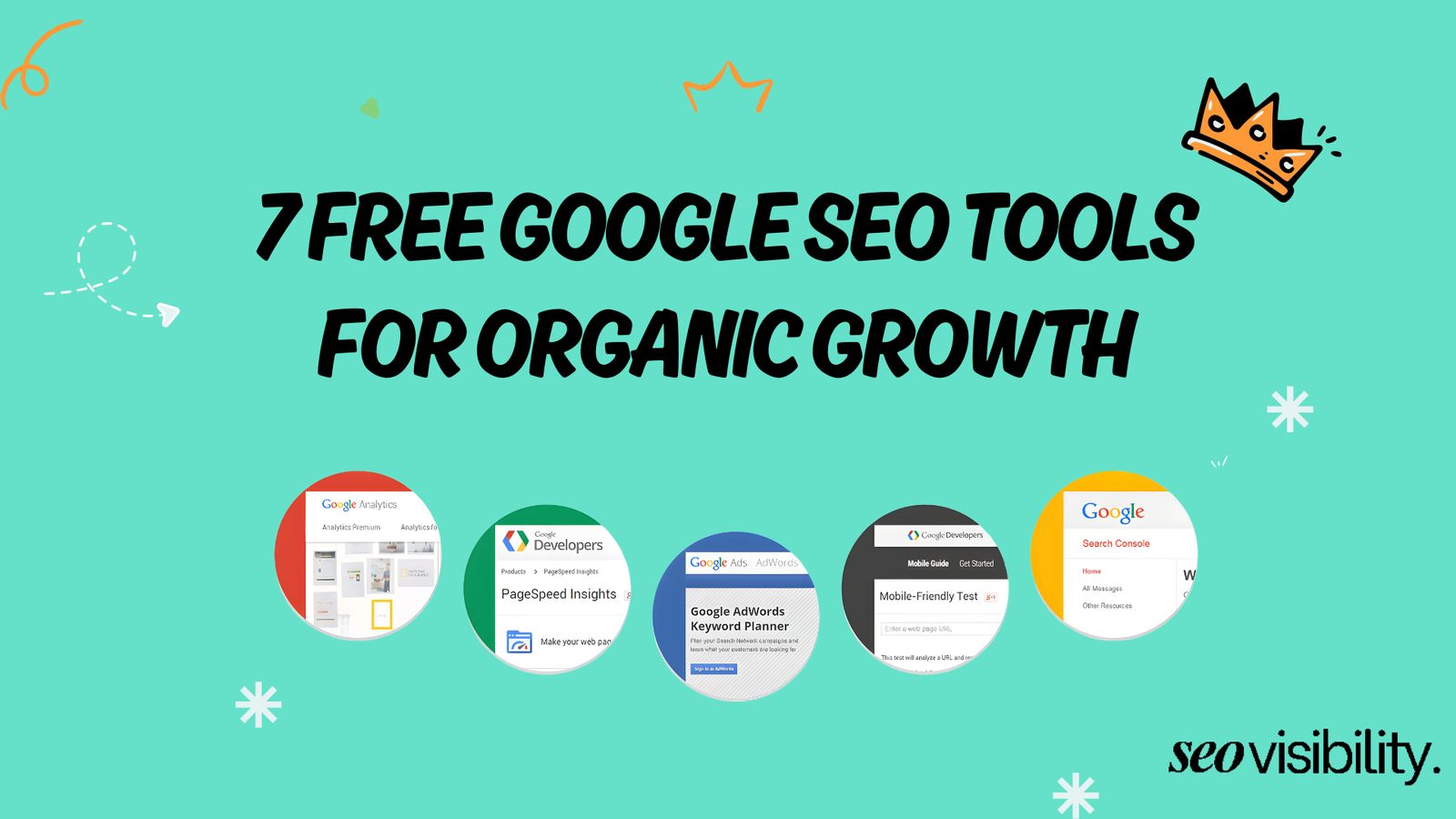
This guide breaks down 7 free Google SEO tools that can help you attract more visitors, fix technical issues, understand your audience, and make smarter content decisions. For each tool, you will learn what it does, its key features, how to use it the right way, and the real benefits it brings to organic growth.
1. Google Search Console
Google Search Console (GSC) is a free platform that shows exactly how Google discovers, crawls, indexes, and ranks your website. Think of it as a direct line of communication between you and Google. If something is wrong with your site in search results, this is where you will find out first.
GSC has been around for years, but it keeps getting better. In 2025, Google added AI-powered configuration to the Performance report, making it faster to filter and compare data using plain language queries. The new integrated Search Console Insights report also helps content creators understand performance without being data experts.
Key Features
- Performance report: View clicks, impressions, average position, and click-through rate (CTR) for every query and page on your site.
- Index coverage: See which pages Google has indexed and which ones have errors, warnings, or exclusions.
- URL inspection: Check how Google sees any specific page, including rendered HTML, indexing status, and mobile usability.
- Sitemap submission: Submit your XML sitemap so Google discovers new and updated pages faster.
- Core Web Vitals report: Monitor loading speed, interactivity, and visual stability across your entire site using real user data.
- Links report: See which external sites link to you and how your internal links are structured.
- AI-powered filtering: Use natural language to apply filters, set up comparisons, and select metrics in the Performance report.
How to Use Google Search Console
Step 1: Verify your website. Go to Search Console, add your property, and verify ownership through DNS, HTML file upload, or Google Analytics. Domain-level verification covers all subdomains and protocols at once.
Step 2: Submit your sitemap. Navigate to the Sitemaps section and enter your sitemap URL (usually yoursite.com/sitemap.xml). This speeds up the discovery of new pages.
Step 3: Find quick-win keywords. Open the Performance report and filter by your target country (for example, United States). Sort queries by position and look for keywords where you rank between positions 5 and 20 with decent impressions. These are pages that already have momentum. A small content refresh, better title tag, or improved meta description can push them higher.
Step 4: Fix indexing issues. Go to the Pages report under Indexing. Look for errors like “Crawled — currently not indexed” or “Not found (404).” Fix the underlying issues (thin content, broken links, redirect chains), then click Validate Fix to ask Google to recrawl.
Step 5: Monitor Core Web Vitals. Check the Core Web Vitals section for pages flagged as “Poor” or “Needs Improvement.” Prioritize fixing those pages, and use PageSpeed Insights (covered below) for specific recommendations.
Benefits of Using Google Search Console
- Identify which keywords actually bring traffic so you can double down on what works.
- Catch crawl and indexing problems before they hurt your rankings.
- Improve CTR by testing better titles and meta descriptions based on real impression data.
- Spot drops in performance early and responds before losing ground.
2. Google Analytics
Google Analytics 4 (GA4) is a free analytics platform that tracks how users find your site, what they do once they arrive, and whether they take the actions that matter to your business. While Search Console tells you how people find you in Google, Analytics tells you what happens next.
GA4 replaced Universal Analytics in July 2023 and runs on an event-based data model instead of sessions. This means it tracks individual interactions like scrolls, clicks, video views, and form submissions more accurately across devices and platforms.
Key Features
- Traffic acquisition: See exactly where visitors come from — organic search, social media, direct visits, paid ads, or referral links.
- Enhanced measurement: Automatically tracks page views, scrolls, outbound link clicks, site search, video engagement, and file downloads without extra code.
- Conversions: Set up to 30 conversion events to track the actions that matter most, like form submissions, purchases, phone calls, or sign-ups.
- Path exploration: Visualize the exact journey users take through your site — from entry page to exit — so you can spot where they drop off.
- Free-form explorations: Build custom reports to dig into specific SEO questions, like which landing pages drive the most engaged organic traffic.
- Cross-platform tracking: Monitor user behavior across your website and mobile app in one place.
How to Use Google Analytics for SEO
Step 1: Install GA4. Add the GA4 tracking tag to your site through Google Tag Manager or directly in your site header. Set up key events for actions that indicate a lead or sale (form fills, purchases, calls).
Step 2: Connect GA4 with Google Search Console. Link both accounts so you can view search queries alongside user behavior data in a single interface. This gives you the full picture — from the keyword someone typed to the action they took on your site.
Step 3: Track organic performance. In the Acquisition section, filter by “Organic Search” to see how much traffic Google sends you, how engaged those visitors are, and how many convert. Compare time periods to measure the impact of SEO changes.
Step 4: Analyze user paths. Use the Path Exploration feature to see how organic visitors navigate your site. Find out which pages keep people engaged and which ones cause them to leave. This helps you improve internal linking and content flow.
Step 5: Build custom reports. Use the Free-Form exploration to create reports tailored to your SEO goals. For example, pull in landing page, organic sessions, engagement rate, and conversion data into one view.
Benefits of Using Google Analytics
- See which SEO pages generate real business results, not just traffic numbers.
- Understand user behavior so you can improve content, layout, and calls-to-action.
- Measure the ROI of your SEO work with clear conversion tracking.
- Track the full user journey across devices and channels.
3. PageSpeed Insights
PageSpeed Insights is a free tool that analyzes how fast your web pages load and identifies what is slowing them down. It tests both mobile and desktop versions and gives you a performance score along with specific recommendations.
Speed matters for SEO. Pages that load slowly frustrate users and lead to higher bounce rates. Research shows that sites with speed issues can see up to 15% lower user engagement. Google also uses Core Web Vitals — which PageSpeed Insights measures — as a ranking signal for page experience.
Key Features
- Core Web Vitals assessment: Measures Largest Contentful Paint (LCP), Interaction to Next Paint (INP), and Cumulative Layout Shift (CLS) using real user data from the Chrome User Experience Report.
- Lighthouse performance score: Provides a lab-based score from 0 to 100, with detailed diagnostics and opportunities for improvement.
- Mobile and desktop analysis: Tests your page on both device types separately, since mobile performance is often very different from desktop.
- Priority recommendations: Lists specific fixes ranked by potential impact — like compressing images, removing render-blocking scripts, or serving next-gen image formats.
How to Use PageSpeed Insights
Step 1: Test your most important pages first. Go to pagespeed.web.dev, enter the URL of your homepage, top landing pages, or highest-traffic blog posts, and click Analyze.
Step 2: Focus on Core Web Vitals. Look at the field data section first (this reflects real user experience). Aim for LCP under 2.5 seconds, INP under 200 milliseconds, and CLS under 0.1.
Step 3: Review the Opportunities section. This shows you exactly what to fix and how much time each fix could save. Common recommendations include compressing and resizing images, eliminating render-blocking resources, and reducing unused JavaScript.
Step 4: Fix issues based on your site type. If you run an informational blog, focus on LCP first (faster loading content). If you run an eCommerce store, prioritize CLS (no layout shifts when users try to click buttons).
Step 5: Retest and monitor. After making changes, test again in PageSpeed Insights and also check Core Web Vitals in Google Search Console to confirm improvements on a site-wide level.
Benefits of Using PageSpeed Insights
- Faster pages keep visitors engaged longer, which reduces bounce rate and increases conversions.
- Meeting Core Web Vitals benchmarks supports better rankings in Google search results.
- Clear, prioritized fix recommendations save time — you know exactly where to focus your effort.
4. Google Keyword Planner
Google Keyword Planner is a free keyword research tool built into Google Ads that helps you discover what people search for and how often. While it was designed for advertisers, it is one of the most reliable free SEO tools for finding content ideas and validating keyword demand.
The biggest advantage of Keyword Planner over other free tools is its data comes directly from Google. That makes search volume estimates more trustworthy, even though they show ranges rather than exact numbers unless you run active ad campaigns.
Key Features
- Discover new keywords: Enter seed keywords, phrases, or even a competitor’s URL, and Keyword Planner generates a list of related keyword ideas based on actual Google search data.
- Search volume estimates: See average monthly search volume ranges for any keyword, along with historical trends showing how interest has changed over time.
- Competition and CPC data: View competition level (low, medium, high) and estimated cost-per-click. While the competition metric reflects ad bidding, low-competition keywords often indicate easier organic ranking opportunities too.
- Location and language filters: Narrow results by country, state, or city and by language — perfect for targeting specific markets like the United States.
- Keyword grouping: Organizes related keywords into themed groups, which can help you plan blog categories, service pages, or content clusters.
How to Use Google Keyword Planner for SEO
Step 1: Create a free Google Ads account. Go to ads.google.com and sign up. You do not need to run any ads or spend any money — you just need an account to access the tool.
Step 2: Choose “Discover new keywords.” Enter 2 to 3 seed keywords related to your business (for example, “Google SEO tools,” “free SEO tools,” “SEO for small business”). Set the location to the United States and the language to English.
Step 3: Analyze the results. Look at the keyword ideas, their search volume ranges, and competition levels. Focus on keywords that have decent monthly searches but lower competition.
Step 4: Use the URL feature for competitor research. Enter a competitor’s website or specific page URL in the “Start with a website” option. Keyword Planner will suggest keywords based on that page’s content, giving you ideas you might not have thought of.
Step 5: Build keyword groups for content planning. Group related keywords into topics. Each group can become a blog post, service page, or FAQ section on your site. This approach helps you cover a topic thoroughly and build topical authority.
Benefits Of Using Google Keyword Planner
- Find keyword ideas backed by real Google search data instead of guessing what people search for.
- Prioritize content topics based on actual search demand in your target market.
- Discover competitor keyword opportunities you might be missing.
- Plan content clusters and site structure around grouped keyword themes.
5. Google My Business (Google Business Profile)
Google Business Profile — still widely known as Google My Business — is a free tool that controls how your business appears in Google Search and Google Maps. For local businesses, this single profile often generates more calls, visits, and leads than the website itself.
When someone searches for a service near them, Google shows a “map pack” — those three business listings that appear with a map at the top of search results. About 42% of searchers click on map pack results, which means appearing there can drive significant traffic without a single paid ad. And roughly 50% of people who do a local search on their phone visit a physical store within a day.
Key Features
- Business information: Display your name, address, phone number, website, hours, and services directly in Google Search and Maps.
- Customer reviews and ratings: Collect and respond to reviews, which directly influence your local search ranking and customer trust.
- Posts and updates: Share offers, events, news, and product highlights to keep your profile active and engaging.
- Photos and videos: Upload images of your location, team, products, and completed work to build credibility.
- Performance insights: See how many people viewed your profile, requested directions, called your business, or visited your website.
- Q&A section: Answer common customer questions directly on your profile.
How to Use Google Business Profile
Step 1: Claim and verify your listing. Search for your business on Google. If a profile exists, claim it. If not, create one at business.google.com. Follow the verification steps (usually a postcard, phone call, or email).
Step 2: Complete every field. Choose the most accurate primary category for your business. Add secondary categories if relevant. Write a clear, keyword-rich business description. Make sure your Name, Address, and Phone number (NAP) match exactly what appears on your website and other directories.
Step 3: Add real photos regularly. Businesses with more photos and regular updates tend to rank higher in local results. Upload images of your storefront, team, products, and projects.
Step 4: Post updates consistently. Use the Posts feature to share promotions, events, blog highlights, or seasonal offers. Fresh activity signals to Google that your business is active.
Step 5: Manage reviews actively. Ask satisfied customers to leave reviews. Respond to every review — positive or negative — in a timely, professional way. A steady stream of recent reviews in the 4.5 to 4.9 range builds more trust than a handful of old 5-star ratings.
Benefits of Using Google my Business
- Appear in the local map pack, which captures a massive share of local search clicks.
- Generate direct leads (calls, direction requests, website visits) straight from Google without needing a click to your site.
- Build local trust through reviews and an active, complete profile.
- Compete with bigger businesses on a level playing field in local search.
6. Looker Studio
Looker Studio (formerly Google Data Studio) is a free, browser-based tool for building visual dashboards and reports from your SEO data. Instead of jumping between Search Console, Analytics, and spreadsheets, you can pull everything into one clean view.
Most SEO data is scattered across different tools and tabs. Looker Studio solves that by connecting directly to Google Analytics, Google Search Console, Google Ads, and dozens of other data connectors. Google itself recommends using Looker Studio to monitor organic search traffic by combining Search Console and Analytics data in a single dashboard.
Key Features
- Data connectors: Connect to GA4, Google Search Console, Google Ads, Google Sheets, BigQuery, and many third-party platforms.
- Visual components: Build dashboards using charts, tables, scorecards, time-series graphs, pie charts, and geo maps.
- Calculated fields: Create custom metrics beyond standard ones — like goal conversion rate, pages per session, or bounce rate by landing page.
- Sharing and collaboration: Share dashboards via a link, embed them on a website, or grant editing access to team members.
- Scheduled email delivery: Automate report delivery on a regular schedule so clients or stakeholders always have fresh data.
- Data blending: Combine data from multiple sources in one chart — for example, compare paid traffic from Google Ads alongside organic traffic from Search Console.
How to Use Looker Studio for SEO
Step 1: Connect your data sources. Open Looker Studio, create a new report, and add Google Search Console and GA4 as data sources. Each source brings in its own set of metrics and dimensions.
Step 2: Start with a simple SEO dashboard. Add scorecards for key numbers: total organic clicks, impressions, average position, and CTR. Then add a time-series chart to show trends over the last 3 to 6 months.
Step 3: Add detail tables. Include tables showing top-performing pages by clicks and top queries by impressions. This gives you an at-a-glance view of what content drives your SEO results.
Step 4: Use calculated fields for deeper insights. Create custom metrics that matter to your business, like organic conversion rate or average engagement time per landing page.
Step 5: Set up automated sharing. Schedule the report to be emailed weekly or monthly. Share the dashboard link with anyone who needs to see performance data.
Benefits of Using Looker Studio
- See all your SEO data in one place instead of switching between multiple tools.
- Spot trends, drops, and opportunities faster with visual charts and graphs.
- Save hours on manual reporting with automated, shareable dashboards.
- Communicate SEO results clearly to clients or team members who are not technical.
7. Google Trends
Google Trends is a free tool that shows how search interest in any topic changes over time, across regions, and compared to other topics. While it does not give you exact search volume numbers, it reveals patterns that other keyword tools miss entirely.
The real power of Google Trends for SEO is timing and validation. It helps you figure out whether a topic is gaining or losing interest, when to publish seasonal content, and which keyword phrasing your audience actually prefers.
Key Features
- Interest over time: See how search interest for any keyword has trended over days, months, or years.
- Interest by region: Break down search interest by country, state, or city to find where demand is strongest.
- Related topics and queries: Discover related search terms, including “Rising” and “Breakout” keywords that are gaining traction fast.
- Compare up to 5 terms: Put multiple keywords side by side to see which one has more interest and how they trend differently.
- Multi-platform data: Analyze search interest on Google web search, YouTube, Google News, Google Shopping, and image search.
- Real-time trending searches: See what topics and queries are trending right now in any country.
How to Use Google Trends for SEO
Step 1: Validate topics before creating content. Before writing a blog post or building a page, enter your target keyword in Google Trends. Set the location and the time range to 12 months or 5 years. If interest is clearly dropping long-term, reconsider investing time in that topic.
Step 2: Find breakout keywords early. Scroll to the “Related queries” section and filter by “Rising.” Look for terms marked as “Breakout” — these are searches that have spiked dramatically and may represent new content opportunities before competition catches up.
Step 3: Plan content around seasonal peaks. Use the 5-year view to identify when interest in your topics peaks each year. For example, “tax preparation” spikes every January through April. Publish seasonal content at least a few weeks before the peak to give Google time to index and rank it.
Step 4: Compare keyword phrasing. If you are deciding between two variations of a keyword — like “Google SEO tools” versus “free SEO tools” — compare them in Google Trends to see which phrasing gets more interest in your target region.
Step 5: Check YouTube trends. Switch the search type from “Web Search” to “YouTube Search” to see if your topic has stronger interest on video. If so, creating a YouTube video alongside your blog post could capture more traffic.
Benefits
- Create content around topics that are growing in interest, not declining.
- Catch emerging keywords before your competitors do.
- Align your content calendar with real seasonal search patterns.
- Choose the right keyword phrasing based on actual search behavior.
7 Free Google SEO Tools (Quick Comparison)
| Tool | Main Purpose | Best For | Data Type | Cost |
|---|---|---|---|---|
| Google Search Console | Search visibility and indexing | Finding keyword wins, fixing crawl issues | Search performance data | Free |
| Google Analytics | User behavior and conversions | Measuring traffic, engagement, ROI | User interaction data | Free |
| PageSpeed Insights | Page speed and Core Web Vitals | Improving load times and UX | Performance diagnostics | Free |
| Google Keyword Planner | Keyword research and volume data | Planning content around search demand | Google Ads keyword data | Free |
| Google Business Profile | Local search presence | Local leads and map pack visibility | Local listing data | Free |
| Looker Studio | Data visualization and reporting | Building SEO dashboards | Multi-source combined data | Free |
| Google Trends | Search trend analysis | Validating topics and timing content | Relative interest data | Free |
Grow Your Organic Traffic with the Right Google SEO Tools and Expert Guidance
Every tool in this list is free, easy to access, and built on real Google data. Together, they give you everything you need to research keywords, track rankings, fix technical issues, understand your audience, and report on results — without paying a cent for software.
But having access to the tools is just the first step. Knowing how to read the data, prioritize the right actions, and turn insights into consistent organic growth is where the real challenge begins.
If you want hands-on help setting up these Google SEO tools, interpreting the data, and building a strategy that actually moves the needle, Khalid Hussain can help.
As a freelance SEO expert and top-rated SEO partner with 15+ years of experience, Khalid has helped 999+ businesses, agencies, and eCommerce stores grow their organic traffic and revenue.
Ready to turn free Google tools into real business growth? Visit seovisibility.co and schedule a free consultation today.